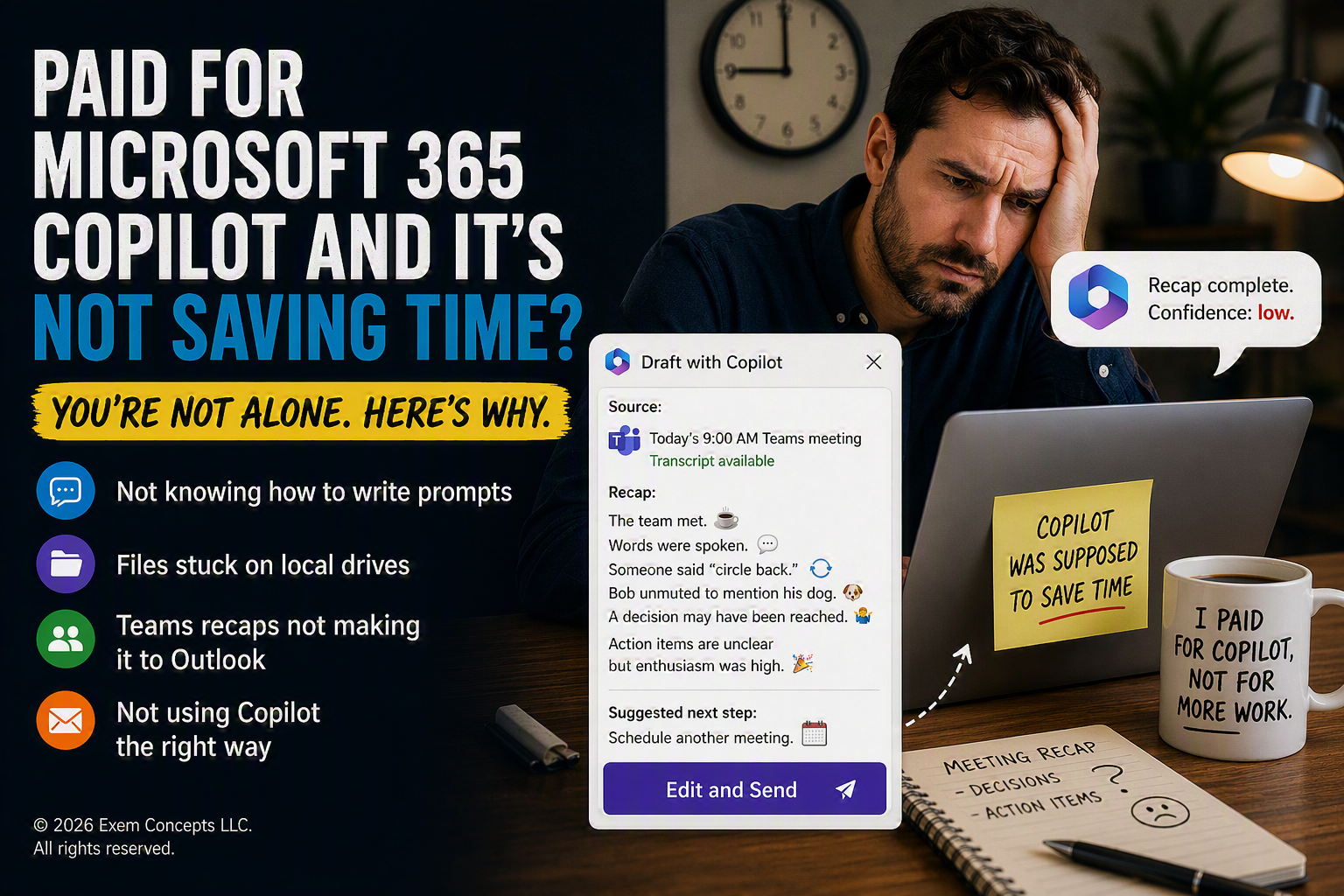
Short answer: Copilot is doing exactly what you told it to do. The problem is usually how you’re prompting, where your files live, and what you think Copilot can do on its own.
Microsoft 365 Copilot not saving time at your company? You are not alone.
You bought the licenses. You watched the demo where someone built a quarterly report in 14 seconds while smiling. You assigned seats. And now, three months later, your staff is still doing the work the old way, except now you’re paying an extra $30 per user per month for the privilege.
Welcome to the most common Microsoft 365 Copilot story in small business right now.
The uncomfortable truth about Copilot
Copilot is not broken. It is also not magic. It is a very capable assistant, but it can only work with what you give it and what you ask it to do. When small businesses don’t get value out of Copilot, the cause is almost always one of seven very human, very fixable things.
Here they are, in the order we actually see them.
Microsoft 365 Copilot Not Saving Time: The Real Reasons in Small Businesses
1. Nobody knows how to write a prompt
Asking Copilot to “write an email to the client” is like asking an intern to “do the thing.” You’ll get a thing. It will not be the thing.
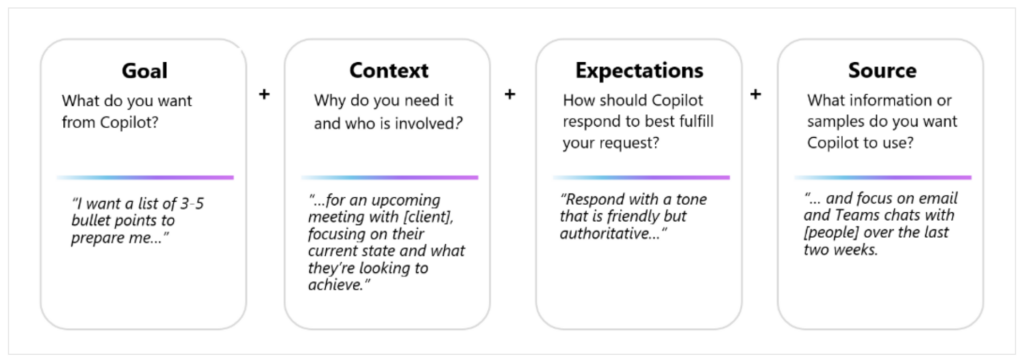
Microsoft teaches a simple four-part formula for a good Copilot prompt:
-
- Goal — what you want from Copilot.
-
- Context — why you need it and who is involved.
-
- Expectations — how Copilot should respond to best fulfill your request.
-
- Source — what information or samples Copilot should use.
That’s the whole trick. Microsoft publishes this guidance for free, and almost no one reads it.
2. Nobody knows they can ask Copilot to write the prompt for them
This is the single most underused feature in the product. If you don’t know how to ask, ask Copilot to help you ask.
Try this: “I need to write a prompt that will get you to draft a follow-up email to a client who hasn’t paid an invoice. Ask me the questions you need answered for Goal, Context, Expectations, and Source, then build the prompt for me.”
Copilot will literally interview you and hand back a better prompt than you would have written. Most users have never tried it.
3. Nobody saves their good prompts
When a prompt finally works, your team closes the window and loses it. Next week they reinvent it from scratch, badly, and conclude Copilot is inconsistent.
Two easy fixes:
-
- Keep a Word doc called “Prompts that work” and paste the winners into it.
-
- Use Copilot’s saved prompts feature inside the Microsoft 365 Copilot app so the whole team can reuse them.
A small prompt library is the cheapest productivity upgrade you’ll ever ship.
4. SharePoint isn’t being used, and OneDrive is a mystery
This is also a Source problem. Copilot does its best work when the information it needs lives in Microsoft 365, not on someone’s desktop. If your team doesn’t use SharePoint, or thinks OneDrive is “that cloud thing the IT guy set up,” there’s nothing for Copilot to point at when you write the Source part of the prompt.
This is fixable without a six-month project. A basic SharePoint structure and a quick OneDrive walkthrough is usually enough to unlock most of the value.
5. Everything lives on the local hard drive
Even when users know Copilot can read a file, they don’t want to keep uploading documents one at a time as a Source. So they don’t. So Copilot answers in the dark.
If the file matters, it belongs in OneDrive or SharePoint. Once it’s there, Copilot can ground its answers in it whenever the right user asks. No more uploading the same PDF four times in one week.
6. Copilot in Teams can’t walk a meeting recap over to Outlook for you
This one trips up almost everyone. Copilot inside the Teams meeting itself will summarize and produce a clean recap, but it won’t open Outlook on your behalf and send the email. Good news: you don’t need it to. #7 shows the cleaner way.
7. The right way to turn a Teams meeting into an email today
If the meeting was recorded and transcribed, you don’t need to recap it in Teams first. Copilot in Outlook can find the meeting, recap it, and draft the email in one shot.
The workflow that actually works:
-
- Open Outlook and start a new email.
-
- Open Copilot in Outlook from inside the draft.
-
- Give Copilot a real prompt with all four parts. Example: “Goal: recap today’s 9 AM Teams meeting and draft a follow-up email to the attendees. Context: internal leadership meeting on the Q3 marketing plan. Expectations: friendly but professional tone, bullet the decisions and the action items with owners, keep it under 200 words. Source: today’s 9 AM Teams meeting recording and transcript.”
-
- Copilot writes the draft.
-
- Click the Edit and Send button. This is the handoff. Up to this point Copilot lives in the chat pane and revises the draft there. It does not type directly into your email body. Edit and Send is how the latest version moves into your Outlook draft, where a human (you) finishes the job and hits Send.
-
- Add or confirm the recipients and send.
A couple of things to know:
-
- The meeting has to have been recorded and transcribed for Copilot to use it as a Source. No transcript, no recap.
-
- The button label is “Edit and Send” in Outlook on the Web.
What actually fixes it
There is no Copilot Easy Button. There is, however, a short list of things that consistently move the needle:
-
- Teach the Goal, Context, Expectations, Source format until your team can do it in their sleep.
-
- Show them how to ask Copilot to write the prompt for them.
-
- Start a shared prompt library and reward people for adding to it.
-
- Get the files off local drives and into OneDrive or SharePoint so Copilot has a real Source to use.
-
- Record and transcribe meetings that matter, so Copilot has something to work with later.
-
- Train the Outlook and Teams workflows that actually exist, not the ones people assume exist.
None of this is glamorous. All of it works.
Why an Orange County IT partner matters here
You can absolutely do this yourself. You can also rewire your own office and rebuild your own transmission. Whether you should is a different question.
Exem Concepts is a Costa Mesa IT services company working with small and mid-size businesses across Orange County: Newport Beach, Irvine, Santa Ana, Huntington Beach, and the rest of the 714/949. The industry calls this a Managed Service Provider, or MSP. Most owners just call us “the IT people who actually pick up the phone.”
We handle the Microsoft 365 setup, the OneDrive and SharePoint cleanup, the Copilot rollout, the prompt training, and the day-to-day coaching that turns licenses into actual time saved.
If your team has Copilot licenses and your ROI looks suspiciously like zero, that’s a fixable problem, not a reason to cancel. We’d rather help you get value out of what you already pay for than sell you something new.