Overview
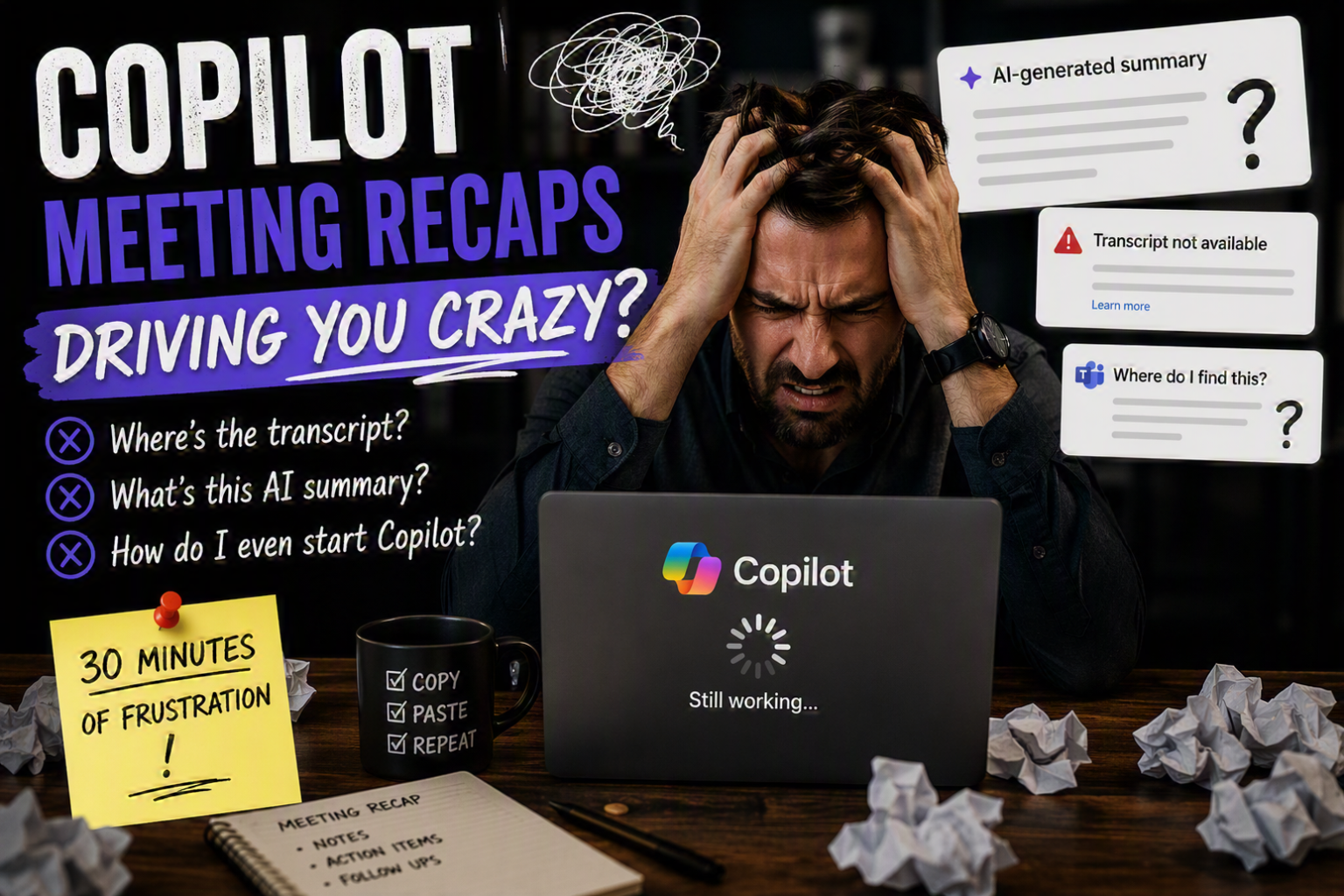
Microsoft 365 Copilot can be surprisingly confusing for meeting recaps—where’s the transcript, what’s that AI summary, and how do you actually start Copilot?
Without the right setup, it can take longer than just doing it yourself. This guide shows you how to create a clean, email-ready recap without the usual frustration.
Prerequisites for Using Copilot in Teams Meetings
Before you can generate a meeting recap, a few non-negotiables need to be in place:
- A recorded Microsoft Teams meeting
- Transcription enabled (automatic or manual)
- An active Microsoft 365 Copilot license
- Organizer set recording/transcription in advance (highly recommended… unless you enjoy rework)
- Attendee permissions to record and transcribe
Important:
If recording or transcription is off in Meeting Options, Copilot has nothing to work with—no transcript, no recap, no magic. a recap. Only the meeting organizer can control these settings, so verify this before the meeting starts.
How to Generate a Copilot Meeting Recap
1. Wait for Processing
After the meeting ends, give it a few minutes. The transcript and recording need time to process—Copilot isn’t instant, no matter how much you stare at the screen.
2. Open the Right Place (Seriously)
Don’t go digging around in OneDrive or the Outlook calendar—you won’t find what you need there.
Instead:
- Go to the Teams calendar
- Open the meeting
- Click “View Recap”
This is where everything actually lives: recording, transcript, and Copilot.
3. Use Copilot (Not the Fake Summary)
You’ll see an AI-generated summary when you land there. Looks helpful… it’s not what you want.
To use Copilot:
- Click the Copilot icon (and yes, sometimes it’s randomly black and white)
- Make sure it’s set to “Work” mode, not “Web”
If you skip this step, Copilot won’t use your meeting data—and you’ll be wondering why the output makes zero sense.
Writing Effective Copilot Prompts for Meeting Recaps
The quality of your output depends on the prompt you use. Remember—you’re talking to a machine, not a person.
Think of prompts less like casual instructions and more like a simple programming language. There’s structure and syntax behind how Copilot works, and you’ll start to see that the moment you ask it to help write a prompt for you.
Best practice workflow:
- Start with asking Copilot how to create the prompt
- Example prompt: “How should I prompt you to create a detailed action and task list using only the meeting transcript and format it as a professional email?”
- Review the output
- Refine the prompt for accuracy and formatting
- Save your finalized prompt for reuse
Now you’re cooking.
Instead of wasting time fighting with an AI tool, you can rinse and repeat clean, structured meeting recap emails—the same ones nobody reads… but at least now you didn’t suffer writing them.
Best Practices for High-Quality Results
To get the most accurate and usable recap:
- Specify formatting (bullets, sections, tone)
- Limit the data source to the transcript only
- Explicitly request action items and owners
- Ask for email-ready output to save time
- Avoid vague instructions to reduce hallucinated content
Being precise keeps Copilot from sneaking in things that were never actually said.
How many times have you had to read every line just to make sure the AI didn’t “helpfully” add something completely out of context? Yeah… not exactly confidence inspiring.
Last thing you need is your boss pointing out AI hallucinations in your meeting recap.
Common Issues (and Why They Keep Happening)
No transcript available
Recording or transcription wasn’t enabled… which means there’s nothing for Copilot to work with. Not a great start.
Copilot not working
Either no license is assigned, or it’s in the wrong mode. Yes, that “Work vs Web” toggle actually matters.
Missing or inaccurate details
The prompt was too vague, so Copilot decided to get creative. Limiting it to the transcript usually solves that real quick.
Can’t access the recap
Permissions issue. If the organizer didn’t set it up correctly, you’re not getting in—simple as that.
Why Use Copilot for Meeting Recaps
Using Microsoft 365 Copilot for meeting summaries actually has some real upside:
- Cuts down the time you’d normally spend digging through transcripts or scribbling notes
- Keeps things consistent by reusing the same prompt (because reinventing the wheel every meeting is exhausting)
- Improves accountability with clear action items—even catches things you missed
- Helps keep everyone aligned so you don’t have five different versions of what happened
And most importantly… it saves you time, which is kind of the whole point here
Next Steps
If you’re looking at Microsoft 365 Copilot and want to roll this out the right way (without trial-and-error frustration), we can help with:
- Licensing and deployment
- Teams meeting configuration (so this actually works every time)
- Prompt design for consistent, usable output
- End-user training so people don’t just give up on it
Reach out if you want Copilot to save you time… instead of wasting it.t.